Flat text works fine until it needs to compete with a photo, a busy background, or a dozen other posts in the same feed. An outline, a drop shadow or a fake 3D font effect gives a headline the kind of weight that makes people stop scrolling, and none of it requires a font built specifically for the job. I’ve built all three effects with the same three or four regular fonts I already had installed, and the tool mattered a lot less than I expected going in.
Affiliate Disclosure: If you buy through links on our site, we may earn a small affiliate commission to help support the blog – at no extra cost to you. It never influences our product selection process. Thank you!
- Outline, 3D and Shadow Font Effects: How to Fake Depth in Any Tool
- Three ways to add depth to flat text
- Outline text effects: when a stroke alone is enough
- Drop-shadow and long-shadow effects step by step
- Faking a 3D extrusion effect without a 3D font
- Building these effects in Canva vs. Procreate vs. Photoshop
- Common mistakes that make depth effects look cheap
- Internal links
What actually changes the result is settings, not software: stroke width relative to the letter, offset distance, and a light direction that stays the same across every letter in the word. Get those three things consistent and a plain sans serif can carry a convincing outline, shadow, or extrusion. Skip them and even a fancy dedicated “3D font” ends up looking flat once it’s resized for a phone screen.
This guide covers the three depth effects worth knowing (outline, drop shadow, fake 3D extrusion), walks through how to build each one step by step, and shows where to build them specifically in Canva, Procreate or Photoshop, since each tool handles the same idea a little differently. By the end you’ll have a repeatable process for adding depth to any headline, poster, or social graphic without hunting down a specialty font file first.
Get the Depth Effect Settings Cheat Sheet — free download.
Download ChecklistThree ways to add depth to flat text
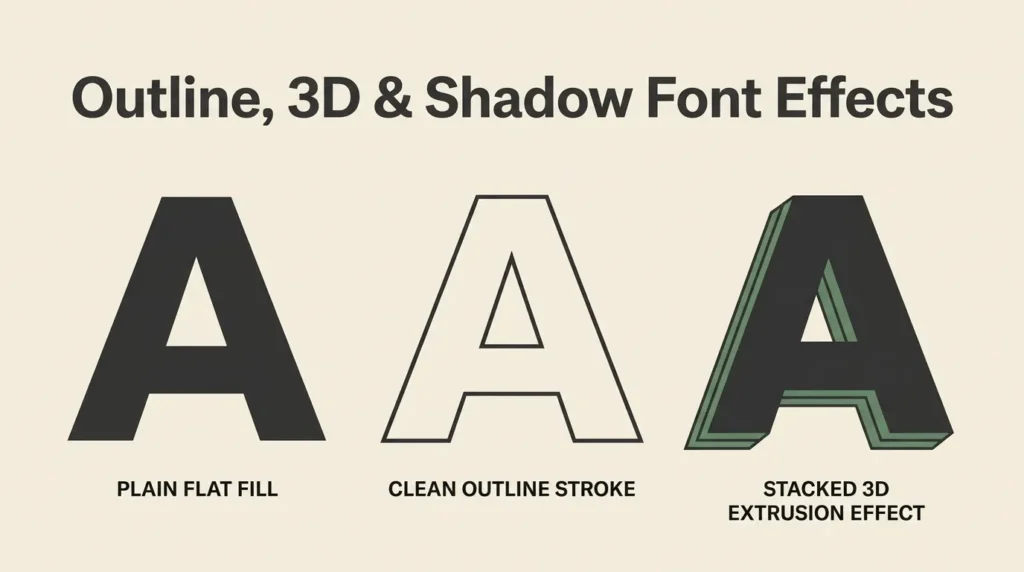
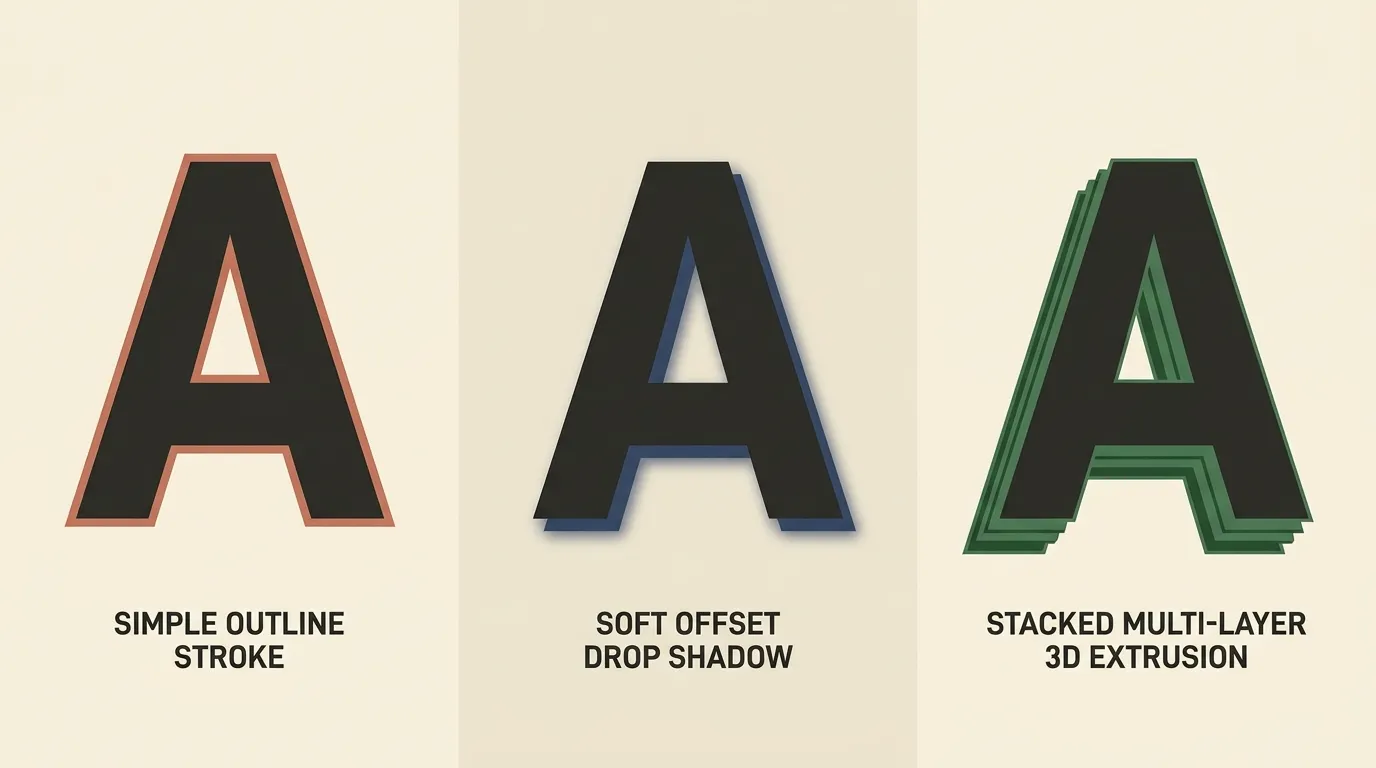
Depth effects on type break down into three families, and most of what you see on posters, t-shirts and social graphics is one of these, or two of them stacked.
An outline traces the edge of a letter with a contrasting stroke. It’s the simplest of the three, and it does the most work per amount of effort: a single-color outline on a solid-color letter separates the text from a busy background instantly, without adding any real dimension.
A drop shadow (or its more graphic cousin, the long shadow) places a second, darker or flat-colored copy of the text slightly offset behind the original. This is what most people mean when they say a font “pops.” The offset copy reads as a cast shadow even though it’s really just a duplicate layer.
A fake 3D extrusion goes further and repeats that offset copy many times in a row, building a solid-looking block of “thickness” behind the letters, the way a physical sign’s lettering has depth when viewed from an angle. It’s the most convincing of the three but also the easiest to overdo.
Most strong designs use one primary effect and keep it consistent across every letter and every piece of related content, rather than mixing all three on the same headline.
Outline text effects: when a stroke alone is enough
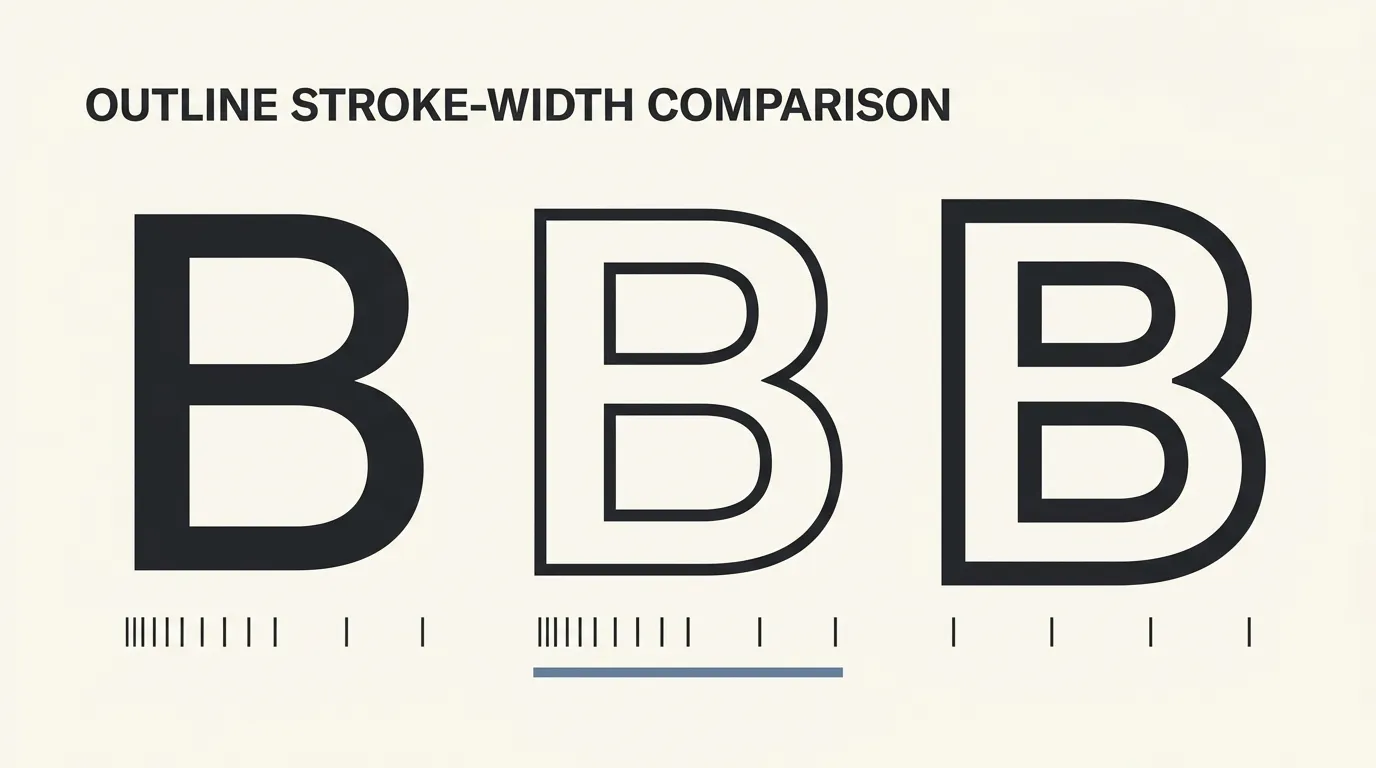
An outline is the right call whenever text sits on top of a photo, a gradient, or any background you don’t fully control. Instagram story text, poster headlines over an image, and Pinterest pin titles all lean on outlines for exactly this reason: the stroke guarantees legibility no matter what’s underneath.
The setting that actually matters is stroke width relative to letter weight. A thin stroke on a thin font disappears at small sizes. A thick stroke on a thin font looks like the letter is wearing a costume that doesn’t fit. The safest ratio is a stroke around 8-12% of the letter’s stroke width, scaled up a little for bold display fonts and down for anything already heavy.
Color choice also does more than people expect. A white outline on dark text reads as clean and modern. A black outline on light or pastel text reads as playful, closer to the bubble-letter look. A colored outline that doesn’t appear anywhere else in the design usually looks like a mistake rather than a choice, so pull the outline color from somewhere else on the page.
Drop-shadow and long-shadow effects step by step
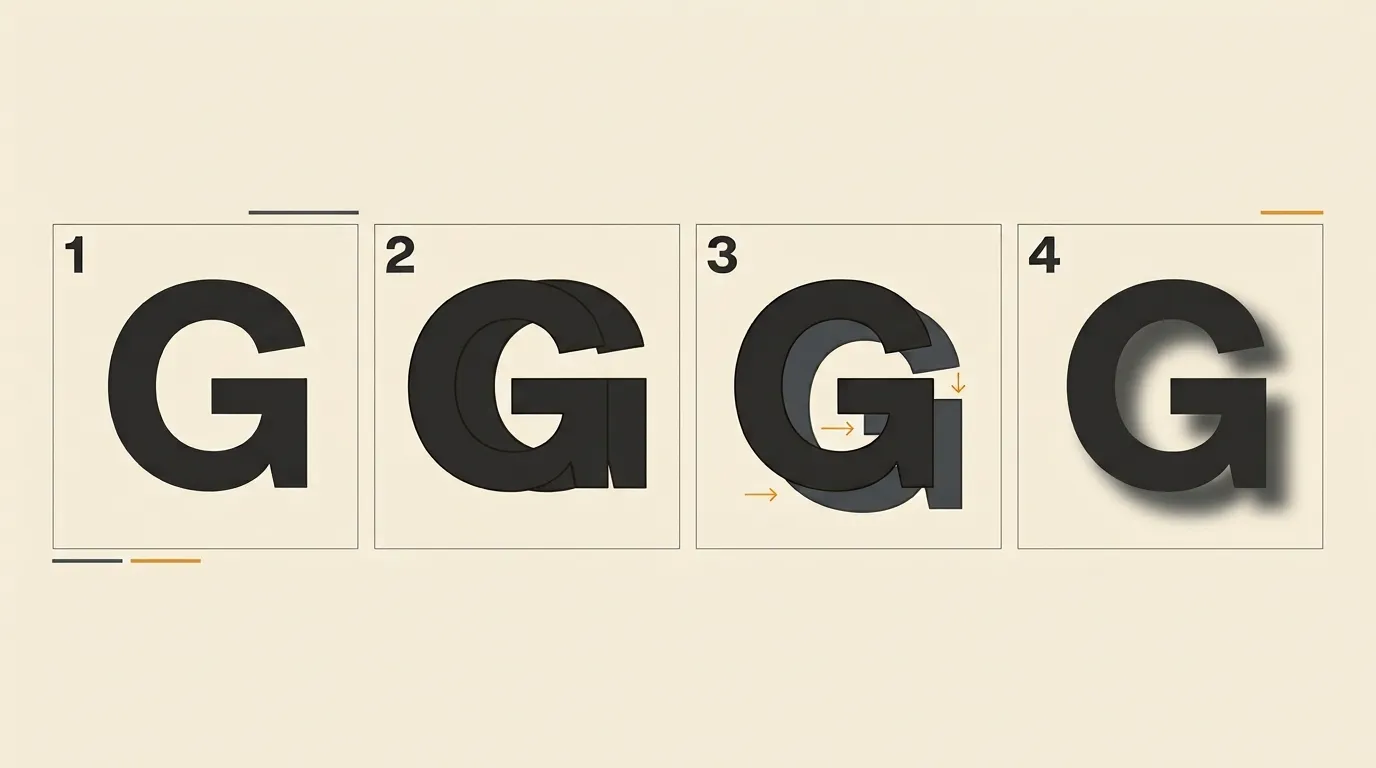
A drop shadow is a duplicate text layer, recolored and nudged, sitting behind the original. The steps are the same whether you’re doing it with a built-in “shadow” slider or building it by hand.
First, duplicate the text layer. Second, recolor the duplicate to something darker than the background (a flat charcoal or a muted version of the brand color both work better than pure black, which tends to look harsh on a warm background). Third, offset the duplicate a small, consistent distance, usually 3-6% of the letter height down and to the side. Fourth, send the duplicate behind the original layer.
A standard drop shadow stops there and often adds a soft blur to the offset copy, which reads as a shadow cast under light. A long shadow skips the blur and instead repeats the offset in a straight, hard-edged line stretching away from the letters at a 45-degree angle, which reads as a graphic, retro-poster effect rather than a realistic cast shadow. Both use the same duplicate-and-offset logic, just with different finishing touches.
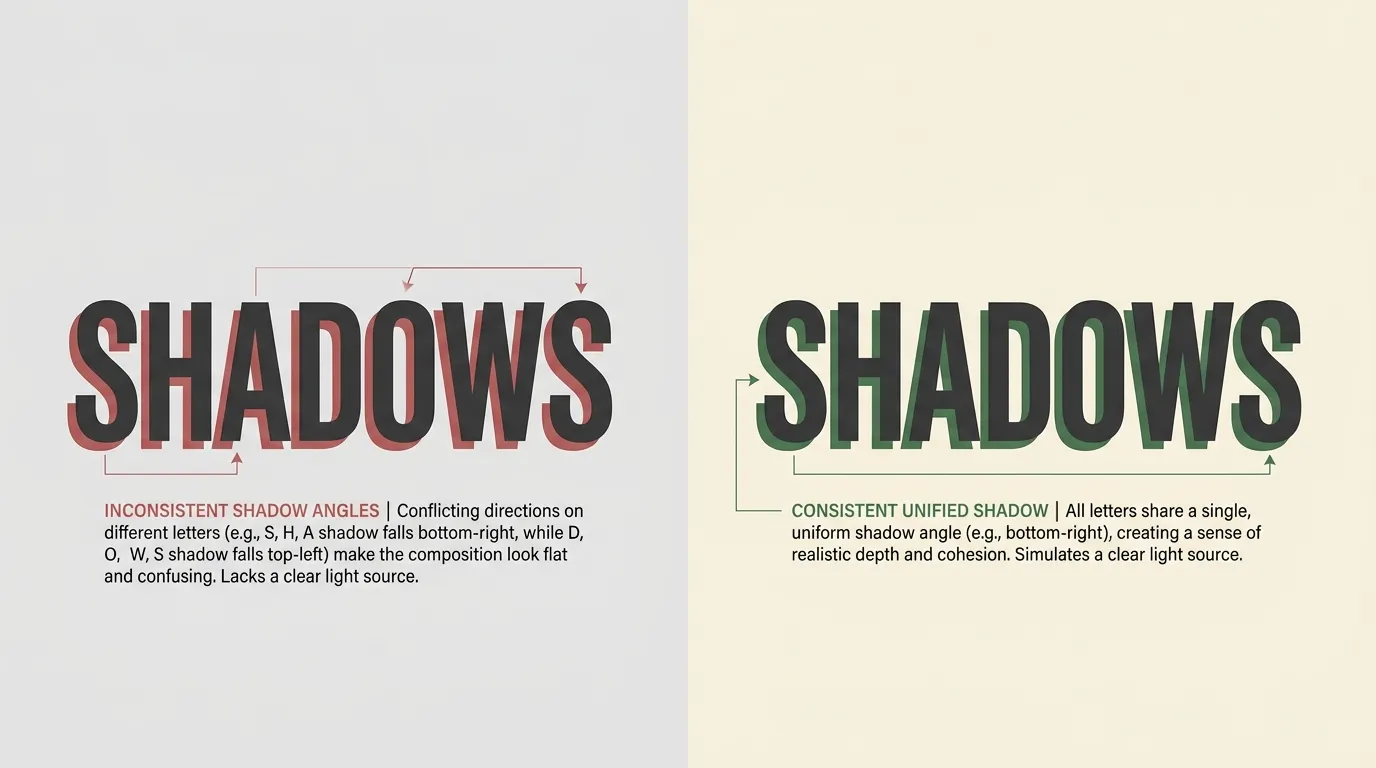
Consistency across a full alphabet matters here. If the offset distance changes letter to letter, the shadow looks like it’s flickering rather than sitting under a single light source.
Faking a 3D extrusion effect without a 3D font
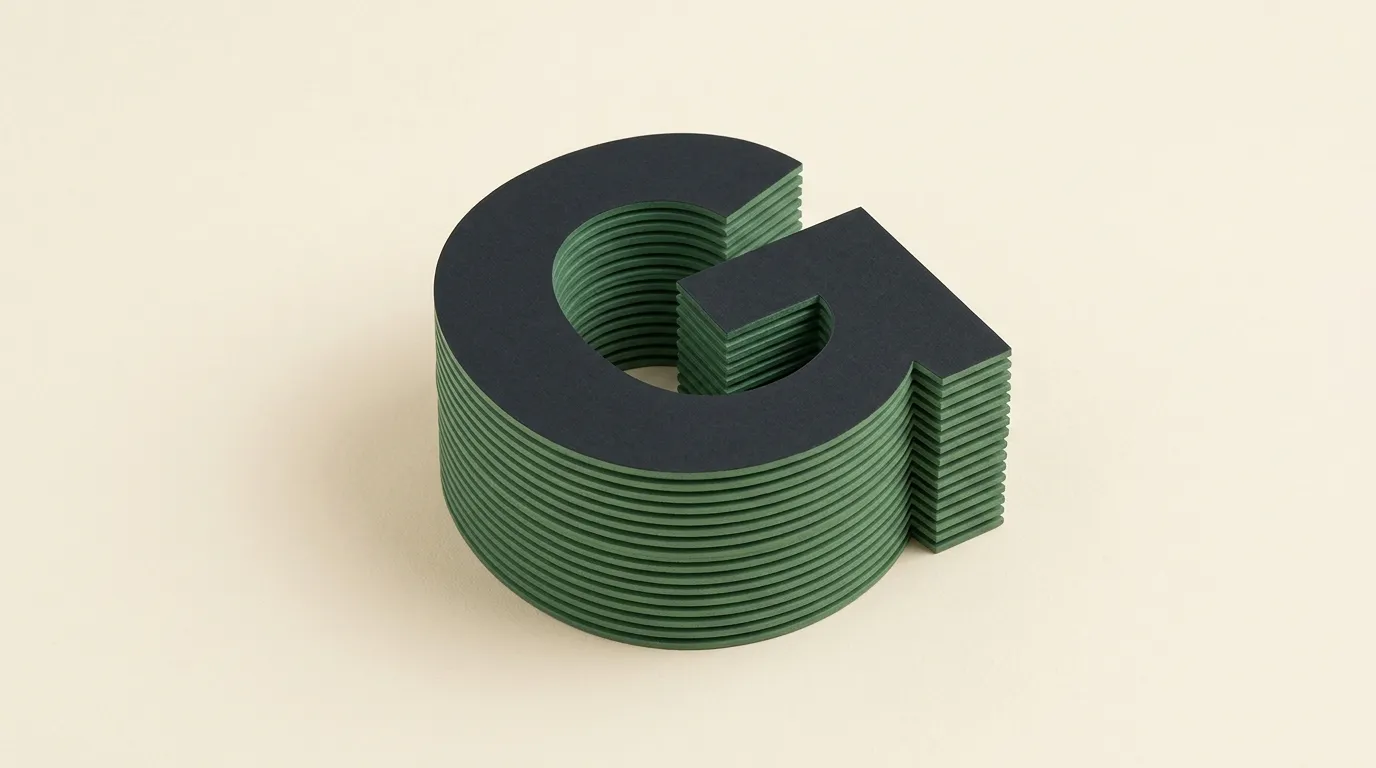
A 3D extrusion is the drop shadow technique repeated many times instead of once, with each copy offset by one extra unit in the same direction. Ten to twenty stacked copies, each nudged a single pixel or point further than the last, build a solid block of visible “side” behind the letters, the same way a die-cut sign has visible thickness when you look at it from the side.
The two settings worth getting right are angle and depth. Angle is the direction all the copies step in, and it should match wherever the light or perspective in the rest of the design is coming from. Depth is how many copies you stack, and it’s a size decision as much as a style one: a short, shallow extrusion (5-8 steps) suits a small headline, while a long, deep one (15-25 steps) suits a large poster-scale word that has room to carry the extra visual weight.
Canva’s dedicated extrusion apps and Photoshop’s 3D or repeated-layer tools both automate the stacking step, which is worth using if it’s available. Procreate has no built-in extrusion tool, so the same effect there is usually built by hand, one duplicated layer at a time, or faked with a single hard-angled long shadow instead of a true multi-step stack.
Building these effects in Canva vs. Procreate vs. Photoshop
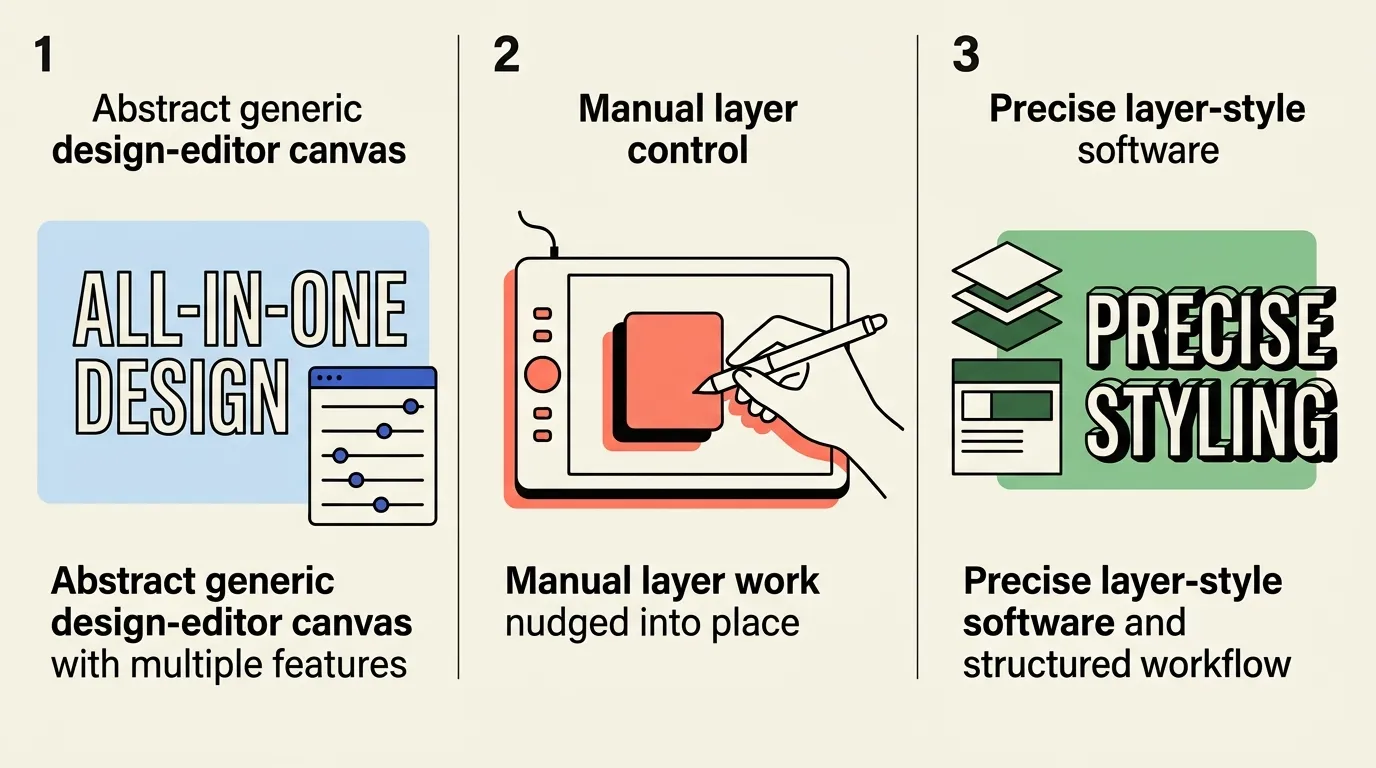
Canva has a dedicated Effects panel on any text box: outline and shadow are built-in sliders (color, offset, blur, direction), and separate apps like TypeExtrude add real 3D extrusion controls, including angle and extrusion color, without leaving the editor. This makes Canva the fastest of the three tools for outline and shadow work, and reasonably fast for extrusion once the app is added.
Photoshop builds all three effects through Layer Styles (Stroke for outlines, Drop Shadow for shadows) or through manual layer duplication for extrusion, since there’s no single “extrude” slider. A heavy, bold font holds up best here because Photoshop’s stroke and shadow settings are pixel-precise and unforgiving of thin strokes at small sizes.
Procreate has no dedicated text-effect panel at all, so every effect here is built manually: duplicate the text layer, use the Selection and Transform tools to offset and distort the copy, then adjust blend mode (often Multiply or Soft Light) and opacity to make the offset layer read as a shadow rather than a second solid letterform. This is the slowest of the three tools for depth effects but gives the most hand-lettered, less templated result, which matters for illustrative or journal-style work.
Any outline, shadow or extrusion effect comes down to the same three moves, no matter which app you’re in.
- Pick the base font
Start with a bold, simple letterform. Thin scripts and fine serifs break down once you stack an outline or shadow behind them, because there isn’t enough stroke width to carry the extra layer.
- Duplicate and offset
Duplicate the text layer, recolor the copy, and nudge it a few pixels down and to the side (or behind, for an outline). This offset layer is what reads as depth once it sits behind the original.
- Set the light direction once and keep it
Decide where the “light” is coming from, usually upper left, and keep every shadow and highlight consistent with that direction across the whole design. Mixed light directions are the fastest way to make an effect look off.
Common mistakes that make depth effects look cheap
The single biggest mistake is mixing light directions. A drop shadow that falls to the lower right on one word and the lower left on the next, in the same design, breaks the illusion instantly even if each shadow looks fine on its own.
The second is using a stroke or shadow that’s too thin to survive resizing. An outline that looks crisp at full size on a monitor can vanish into a single blurry line once the same graphic is resized for a mobile feed or printed small. Test the effect at the smallest size it will actually be viewed at, the same rule that applies to font pairing generally.
The third is stacking too many effects on the same word. An outline, a drop shadow, and an extrusion all applied at once to a single headline usually reads as noise rather than depth. One primary effect, applied consistently, almost always outperforms three effects competing for attention on the same letters.
No. A 3D extrusion is built by duplicating and offsetting a regular bold font’s text layer multiple times, not by using a font file designed specifically for 3D. Any sufficiently bold, simple font works as the base.
This usually comes from a stroke that’s too thin relative to the letter weight, or from resizing a raster (pixel-based) version of the text after the outline was already applied. Apply the outline to vector text where possible, and keep the stroke width proportional to the font’s own weight.
Internal links
- Bubble Letters for Crafts, Posters and Journals (outline and shaded bubble-letter styles this same technique builds on)
- Font Backgrounds and Text Animation Ideas for Social Media (where depth effects fit into a full social graphic)