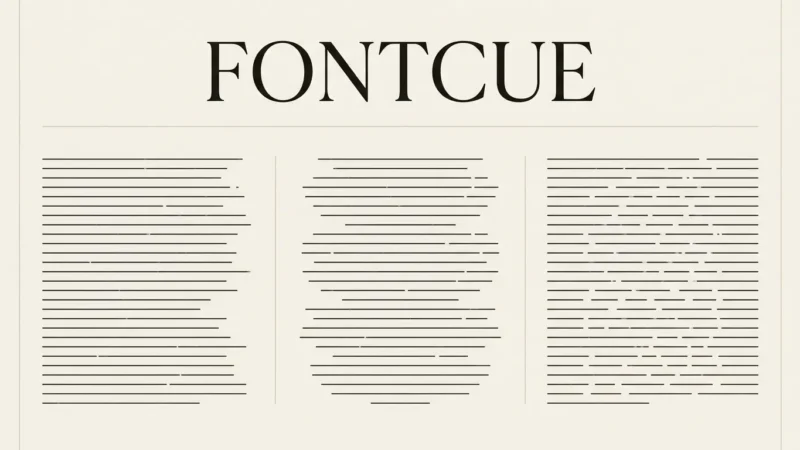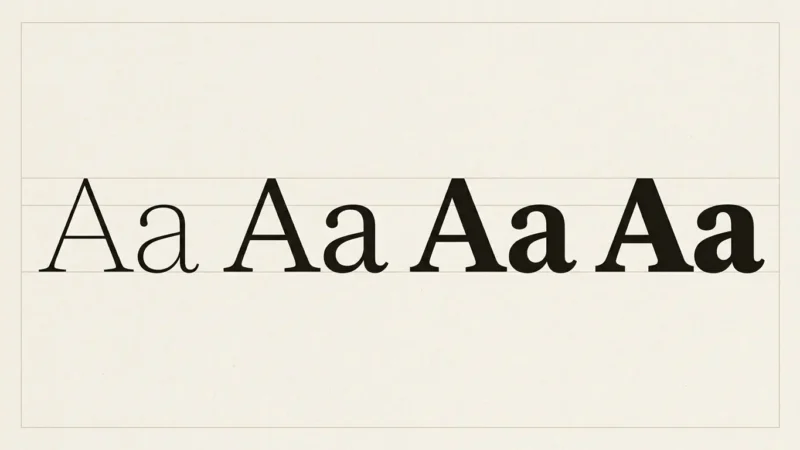
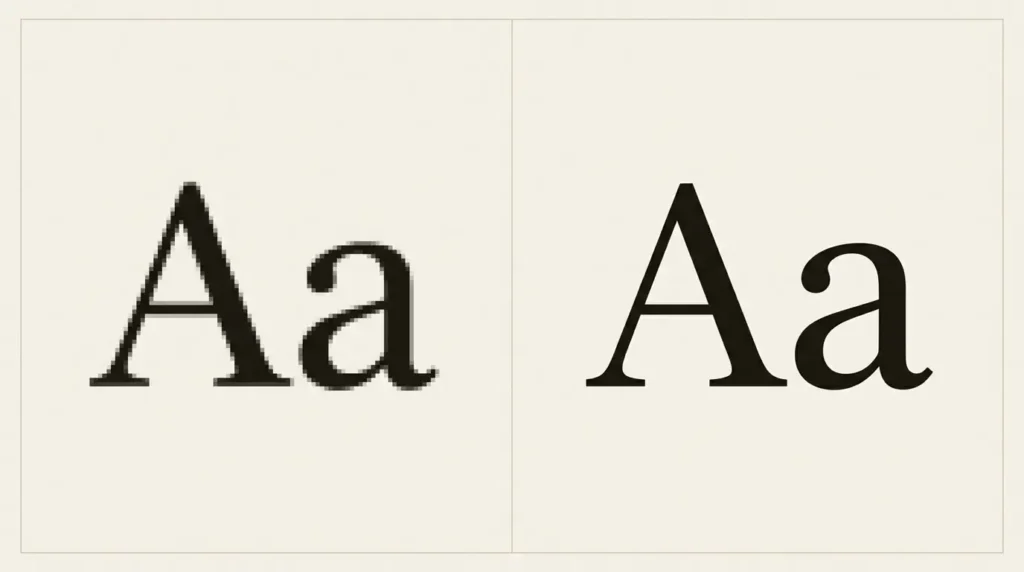
When fonts look blurry, find the first place the text loses its sharpness: inside the editor, in the exported file, or after a website or social platform displays it. A new typeface will not repair a small image that has been enlarged. Keep the editable original and compare each stage at the intended viewing size.
Affiliate Disclosure: If you buy through links on our site, we may earn a small affiliate commission to help support the blog – at no extra cost to you. It never influences our product selection process. Thank you!
- Why Fonts Look Blurry: Fixing Text on Screens and in Exports
- Find where the text becomes soft
- Know whether you are looking at text or pixels
- Match exported pixels to the destination
- Compare formats using the same design
- Inspect the image the website actually uses
- Build a small export test you can repeat
- When changing the typeface or weight helps
- Frequently asked questions
Begin with the exact file that looks wrong. Check its pixel dimensions, displayed size, and format. Then compare it with a fresh export from the original document. The comparison helps distinguish a delivery problem from letterforms too delicate for the job.
Find where the text becomes soft
Place the editable document and its export beside each other. Use the same wording and a similar visible size. If the editor is sharp and the export is soft, investigate export settings. If the export is sharp on your computer but soft on a website, inspect what the website actually serves. If everything looks soft, compare another document before blaming this particular font.
| Where the problem appears | First useful check |
|---|---|
| Only in an exported image | Exported pixel dimensions and compression |
| Only after upload | The actual delivered image and its display width |
| Only when the image is enlarged | Whether a raster image is being scaled beyond its useful detail |
| Only in one heading or word | Local effects, weight, transforms, and the original text layer |
| Across unrelated apps and documents | Display settings or viewing conditions before editing the artwork |
Keep screenshots of the comparison if you need to explain the problem to someone else. Include the whole text block and the file dimensions, and show the viewing scale alongside any close-up.
Know whether you are looking at text or pixels
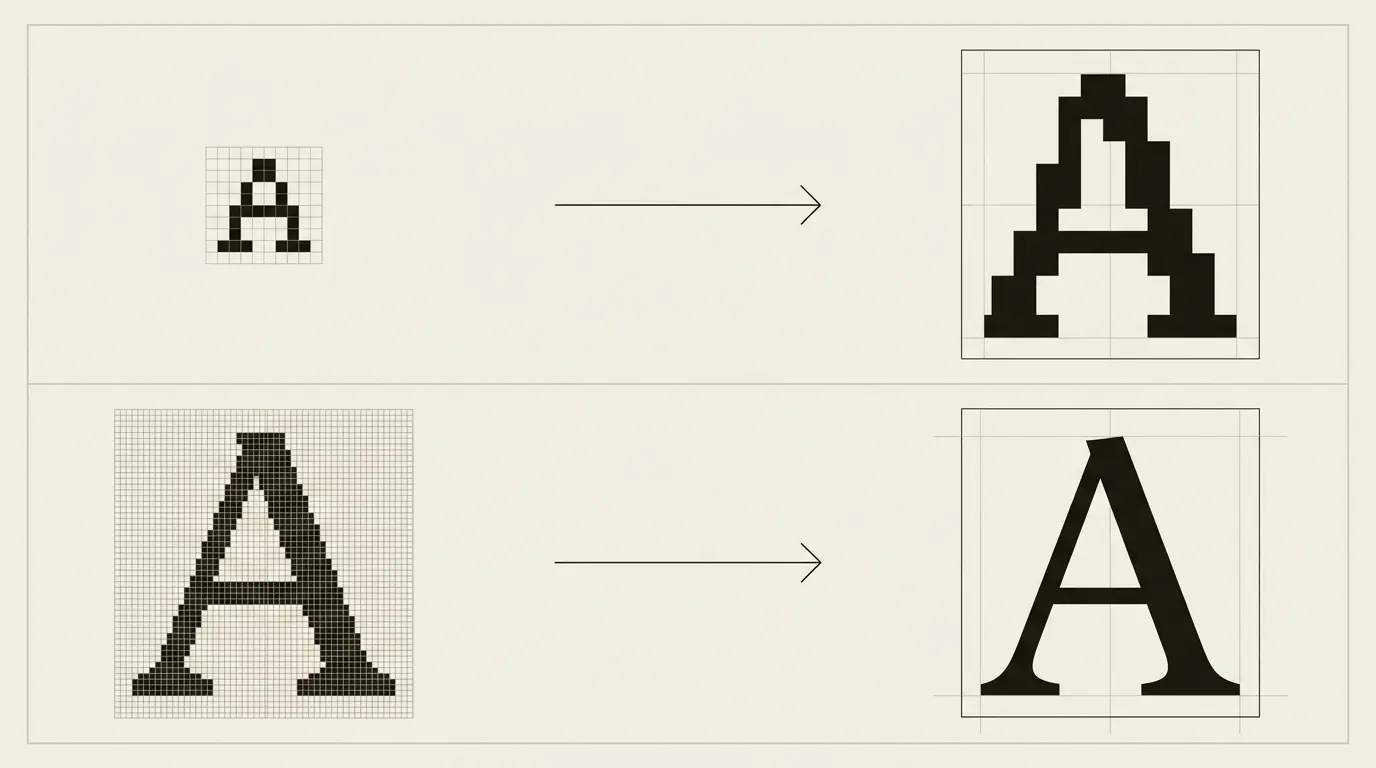
A raster image contains a fixed grid of pixels. Vector artwork describes shapes and outlines. Adobe’s raster and vector guide explains why enlarging a raster image can introduce blur or visible pixelation, while vector shapes can be rendered again at another size.
A PNG containing a headline is still an image of that headline. The letters may have started as editable text, but exporting the design to pixels changes what the next application receives. Increasing the image’s dimensions later does not recover the original outline detail.
Preserve a master file with editable text. In Photoshop, type layers retain editable vector-based outlines until operations convert the content to raster pixels. Other applications have their own document models, so check that the saved original still lets you change the wording and typeface.
Use a copy for flattening, filters, or destructive effects. A flattened delivery file can be appropriate; it should not become the only version from which every future size is made.

Match exported pixels to the destination
A 600-pixel-wide graphic displayed 1,200 pixels wide must be enlarged. Export a fresh version from the editable original at a size suited to the destination, instead of stretching the 600-pixel copy.
Screen layout uses its own unit of size. A CSS pixel used for layout does not always correspond to one physical screen pixel. MDN’s devicePixelRatio documentation describes that ratio. High-density screens can therefore need more source-image pixels than a quick reading of the layout width suggests.
For a delivery test, compare a normal export and a larger export shown at the same visible width. If the larger file helps, you have useful evidence about that asset and destination. It does not establish a universal rule that every image must be exported at twice its size. Balance file detail with the actual platform’s processing and file limits.
Record width and height in pixels alongside the result. A resolution label alone is a poor handoff for someone placing a web image: they need to know how many pixels the actual file contains.
Compare formats using the same design
Adobe distinguishes lossless PNG compression from lossy JPEG compression. For a text-heavy graphic, export the same design in both formats at the same pixel dimensions and inspect the letter edges. Look for halos, blocks, or softened detail around fine strokes. Avoid comparing a tiny PNG with a much larger JPEG and attributing the difference to format alone.
Choose the version that survives the destination’s delivery process. A mostly photographic design may have different file-size priorities from a flat typographic specimen. Keep both the quality observation and the file size in your notes.
Do not repeatedly save a delivery copy through multiple editing applications as your normal workflow. Return to the editable original, make the wording change there, and create a fresh export. That also prevents the team from inheriting a version with old dimensions or an unnoticed crop.
Inspect the image the website actually uses
Upload can introduce a new stage between your export and the reader. Open the image served on the page and compare it with your original file. Check whether the page selected a smaller derivative, whether the layout enlarged it, and whether a content-delivery service converted it.
Do not infer image quality from the filename alone. An address ending in one extension may be delivered differently by the server, and a filename containing a large number does not prove the image has sufficient dimensions. Compare the file’s real dimensions with its rendered size.
If the page uses ordinary HTML text, investigate it as text. Check the intended font and weight, whether the font loaded, and whether an effect or transform is involved. Replacing selectable text with a screenshot usually creates another scaling problem.
WCAG’s Images of Text criterion favors actual text when the technology can achieve the presentation, with exceptions for customizable or essential presentations. Keeping a website paragraph as text also lets readers adjust its display. A decorative wordmark and a full article paragraph are different cases.
Build a small export test you can repeat
Use a heading, one short paragraph, and a small label from the actual design. Include punctuation and a few narrow or curved letters. Make a compact test area instead of exporting a huge poster for every adjustment.
Save the editable source and note the intended viewing size.
Export two pixel sizes from that same source with the format held constant.
Compare them at the same displayed width, not at the same zoom percentage in unrelated windows.
Choose the useful size, then compare compression or format separately.
Upload the candidate and inspect the actual delivered asset on a phone and a desktop.
Name the files by size and version so the comparison remains understandable. A note such as “larger export retained the punctuation at the final display width” is more useful than “version B looks premium.” Keep the best source and the final export together.

When changing the typeface or weight helps
Once the export chain is working, inspect the letterforms. Very fine strokes, small internal spaces, or elaborate details can still be hard to distinguish at the chosen size. Try a less delicate weight or a simpler face while keeping the layout fixed.
Compare the actual words. A heading may look acceptable while its small date line becomes difficult to read. If the date is essential, give it enough room rather than making every other part of the design equally heavy.
The guide to thin and minimalist fonts discusses where light styles fit. For web text, the website and UI font guide offers another starting point. Use the print font-size guide when the final output is physical rather than a web image.
Frequently asked questions
No. A PNG can still be too small, enlarged after export, or processed into another asset by a platform. Compare pixel dimensions and the delivered result. Check the format alongside size and delivery.
Compare the uploaded original with the file used on the page. A smaller derivative, enlargement, or another processing step may account for the change. Keep the source font unchanged while checking that delivery chain.
First check source quality and scaling. Sharpening cannot restore the editable outlines missing from a small flattened file. Make a fresh export from the original before deciding whether any finishing adjustment is useful.
No. Inspect the text at the destination’s viewing size as well. Extreme enlargement exposes pixel structure that may not be visible in normal use, while a small essential label can fail even when the large headline looks sharp.