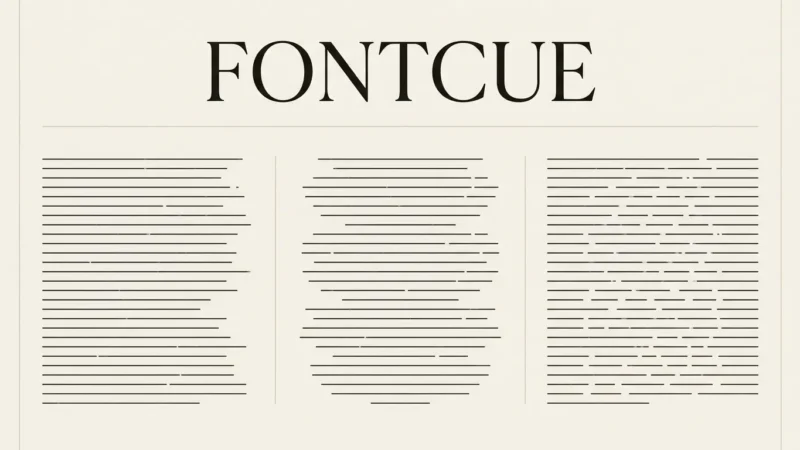

Check font spacing and line height before replacing a font that feels hard to read. A paragraph can use a perfectly ordinary typeface and still look cramped because its lines are too close, its column is too wide, or the spaces between letters have been squeezed. Keep the font, set a sensible column width, and adjust the distance between lines. Then read a complete paragraph at its final size.
Affiliate Disclosure: If you buy through links on our site, we may earn a small affiliate commission to help support the blog – at no extra cost to you. It never influences our product selection process. Thank you!
- Font Spacing and Line Height: What Makes Text Easy to Read
- Find the spacing problem first
- Kerning, tracking, leading: which control does what?
- A starting setup for readable web paragraphs
- Compare the same paragraph at two line heights
- Give the reader a manageable line length
- Use letter spacing carefully in headings and body text
- Fix an awkward pair without widening the whole title
- Separate paragraphs without scattering the page
- Recheck spacing after changing the font
- Check the layout at the size people will use
- What WCAG’s text-spacing numbers mean
- Frequently asked questions
For an English web article, try a line height around 1.5 to 1.7, ordinary letter spacing, and a desktop column that holds roughly 60 to 70 characters per line. Use those settings for a first comparison, then adjust them for the reader and typeface. Short headings and narrow phone screens need their own check.
Find the spacing problem first
Match the reading problem to a setting before redesigning the page.
| What you notice | What to try first |
|---|---|
| You lose your place when moving to the next line | Narrow the text column, then compare line heights |
| The paragraph looks like a solid block | Increase line height while keeping font size unchanged |
| Words look pulled apart | Return letter spacing toward the font’s normal setting |
| One letter pair leaves an obvious hole | Check that pair’s kerning |
| Separate paragraphs seem to run together | Add a consistent gap between paragraphs |
Change one setting at a time and keep a copy of the original. Otherwise, an improvement tells you very little about which adjustment helped.
Kerning, tracking, leading: which control does what?
Kerning changes the distance between a particular pair of characters. Tracking changes spacing across a selected word or passage. Adobe’s kerning and tracking guide explains the difference. When a title has one awkward gap, a pair adjustment can fix it without spreading every other letter.
Line height controls the vertical space allocated to each line. Design editors may call the related setting line spacing or leading. Paragraph spacing adds separation between complete paragraphs. Increasing line height affects every line; adding a paragraph gap marks where one thought ends and the next begins.
A heading with an uneven pair and a paragraph with tightly stacked lines need different controls. Check which text is selected before making an adjustment, especially when the same editor exposes character and paragraph settings together.
A starting setup for readable web paragraphs
For a first comparison, use a comfortable body size, normal tracking, left alignment, and a moderate column width. The U.S. Web Design System typography guidance recommends an effective size of at least 16 pixels for most body text. It gives a line-length range of 45 to 90 characters and a target of 66 for long text. Try the narrower 60-to-70-character range here as a starting exercise.
Try 18-pixel text with a line-height multiplier of 1.6 as one sample. The resulting line height is 28.8 pixels: 18 multiplied by 1.6. In CSS, a unitless line-height: 1.6 scales with the element’s own font size. MDN recommends unitless line heights for most cases because of how they inherit.
You can run the same comparison in a visual editor without writing CSS. Keep the text box width and font size fixed, then compare two line-spacing settings. The units and labels may differ between editors, so judge the exported result rather than copying a number from one tool into another.
Compare the same paragraph at two line heights
These samples keep the words, font size, and available width fixed while changing line height. Read to the end of each paragraph; a quick glance mainly tells you which block occupies more space.
Sample A: line height 1.1
A useful paragraph gives the reader enough room to follow a sentence and find the beginning of the next line. Keep the words and the typeface the same while you compare the spacing. Read the whole passage before deciding which version you would use for a longer page.
Sample B: line height 1.6
A useful paragraph gives the reader enough room to follow a sentence and find the beginning of the next line. Keep the words and the typeface the same while you compare the spacing. Read the whole passage before deciding which version you would use for a longer page.
If the second sample feels too loose with your chosen font, compare an intermediate setting. Choose the version in which you can follow consecutive lines comfortably and still see a connected paragraph. These are visual samples, not the results of a reading-speed study.

Give the reader a manageable line length
A paragraph stretching across a wide desktop window is worth checking even when each individual word looks clear. Narrow the column while leaving the font unchanged, then read across several line endings. Compare how easily you find the next line.
A width such as 65ch can be a useful CSS starting point, but it does not force exactly 65 characters onto every line. The CSS ch unit is based on the advance width of the zero glyph in the active font. Proportional letters, punctuation, and word lengths determine the actual count.
On a phone, use the space available after comfortable side margins. Do not shrink the text to preserve the desktop character count. A narrower screen will naturally wrap a paragraph into more lines. Check that the extra lines still belong together visually and that the text does not press against the screen edges.

Use letter spacing carefully in headings and body text
For ordinary body copy, begin with the font’s normal spacing. If someone has applied wide tracking across the whole article, compare a reset before changing the typeface. MDN’s letter-spacing documentation explains that positive values spread characters apart and negative values bring them closer. Either extreme can make words difficult to recognize.
A short uppercase label gives you room to experiment. Try a small increase on a label such as OPEN STUDIO, then check whether it still reads as two words. Use the actual label rather than a row of identical letters. The setting that looks balanced on that label may look scattered across a full sentence.
Apply that exercise to Latin lettering only. Connected scripts require different treatment; MDN specifically warns that letter spacing can make Arabic-script text appear broken. There is no single tracking preset to apply across a multilingual design.
Fix an awkward pair without widening the whole title
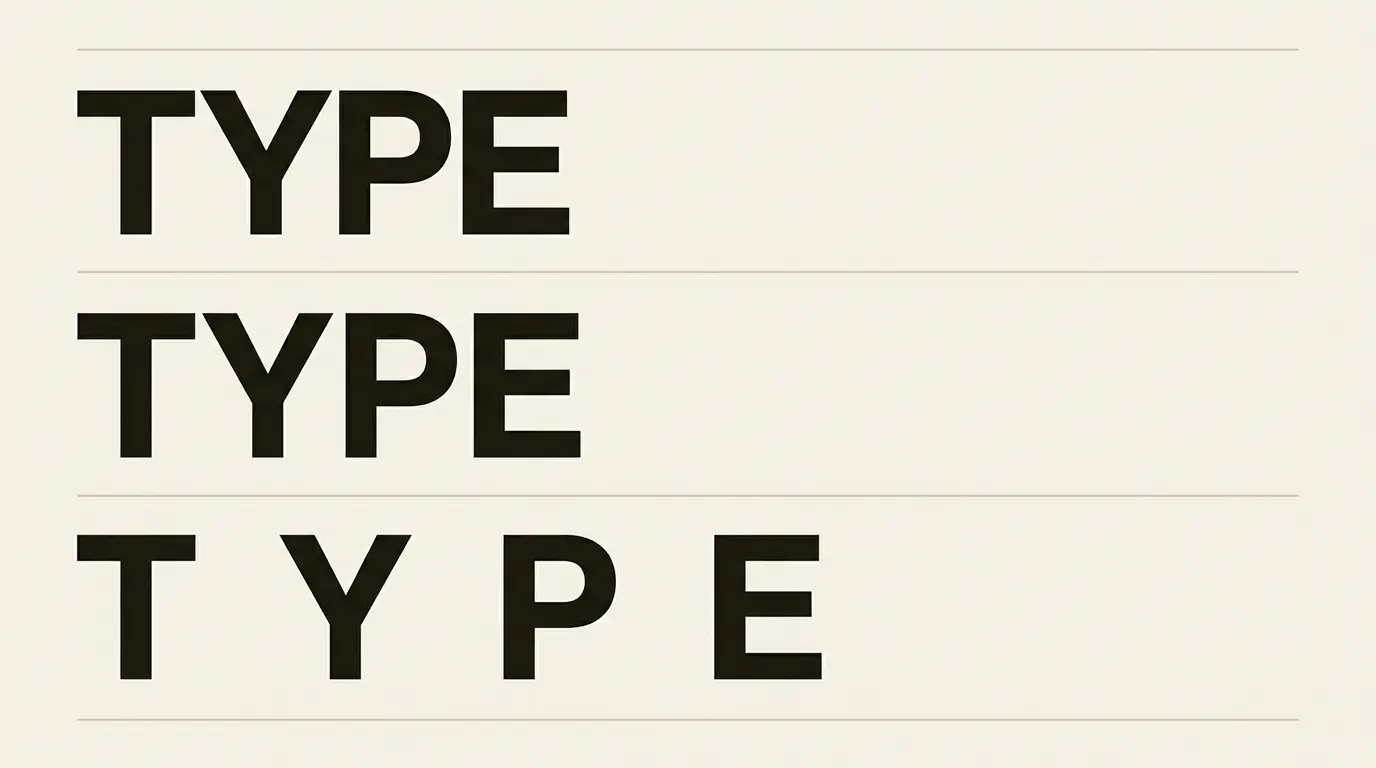
Type your real headline and inspect the spaces inside its words. In a title containing AV, To, or Wa, compare the apparent gap with its neighbors. The shapes may leave a gap that feels different from the others, but do not assume every font needs manual correction.
If one pair looks wrong, first check the font’s built-in kerning or the editor’s automatic kerning option. Make a local adjustment only if the tool supports it and the pair still needs attention. Widening the whole title to repair one gap changes letters that may already be spaced well.
Review the title at its intended display size after a close-up adjustment. A gap that attracts attention at extreme zoom may be unobtrusive in a small heading. Use the intended display size to decide whether the pair needs further adjustment.

Separate paragraphs without scattering the page
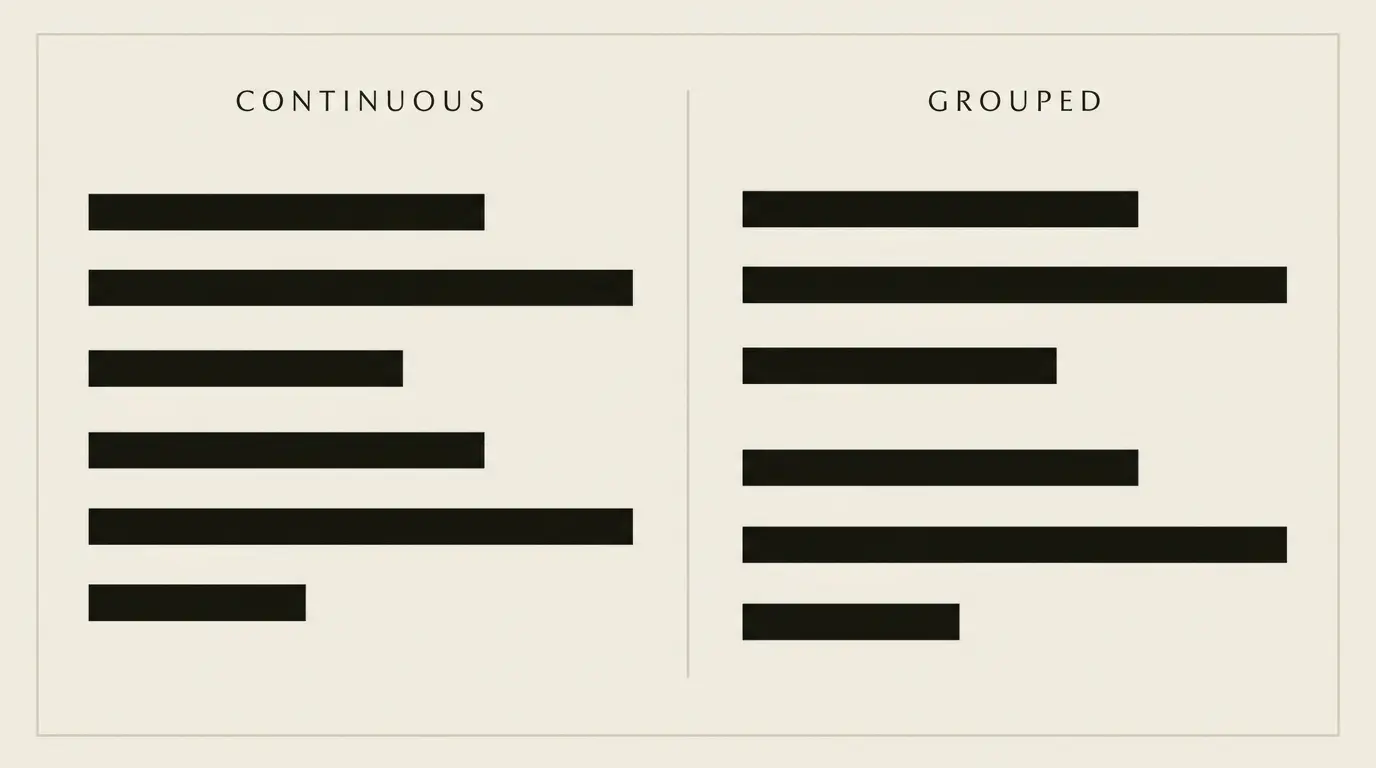
Take two paragraphs with no space between them. Keep their line height unchanged and add a paragraph gap. Line height holds each thought together; the paragraph gap marks the next thought.
Use the paragraph-spacing control or a consistent style, rather than pressing Return repeatedly. Repeated empty paragraphs are harder to maintain when you revise the copy or move it between layouts. Check the gap below headings too: a heading should appear to introduce the text that follows it.
Try a paragraph gap of about one body-text line and adjust it to the layout. This is an editing exercise, not an accessibility threshold. A short caption and a long article need different amounts of separation.
Recheck spacing after changing the font
Two fonts set to 18 pixels can look different in size. The USWDS explanation of typesetting attributes apparent-size differences to internal font metrics and design choices such as x-height. Matching the number in the size field does not guarantee matching visual density.
After a swap, compare a complete paragraph and a heading that wraps onto two lines. Look for a cramped lowercase texture, an unusually long line, or a title that now wraps in an awkward place. Revisit the column and line height before applying global tracking.
If the letterforms themselves are unsuitable for the job, the FontCue guide to website and UI fonts can help you choose another direction. For the relationship between headings and body copy, use the font pairing and hierarchy checklist.
Check the layout at the size people will use
Use a real paragraph, a wrapped heading, and a short label in your check. That small set exposes more spacing problems than a single oversized sample word.
Save the original so that you can compare it with the revision.
Set a comfortable text size and a column that fits the destination.
Adjust line height while keeping the other settings fixed.
Review paragraph gaps, then inspect any awkward letter pairs.
Open the page or export at its actual viewing size. Check a narrow screen and enlarged text where applicable.
For a static social graphic, inspect the exported image on a phone rather than judging only the enlarged design canvas. For a website, use the live, selectable text. If spacing looks right but the letters remain difficult to see, the separate font color and contrast guide covers the next check.
What WCAG’s text-spacing numbers mean
WCAG 2.2’s Text Spacing criterion, 1.4.12, is a Level AA requirement about accommodating user changes. For applicable markup-based content, text must tolerate these settings together without losing content or functionality:
- Line height of at least 1.5 times the font size.
- Spacing after paragraphs of at least twice the font size.
- Letter spacing of at least 0.12 times the font size.
- Word spacing of at least 0.16 times the font size.
Those values are user-override test settings. The criterion does not require every author to use them as the default design. It also includes an exception for languages and scripts that do not use a listed spacing property. When checking a web layout, apply the relevant overrides and look for cut-off words, overlapping text, or controls that become unusable.
Check enlargement separately. WCAG’s Resize Text criterion, 1.4.4, requires text to resize to 200 percent without loss of content or functionality, with stated exceptions for captions and images of text. A browser zoom check can reveal problems, but these checks alone do not establish complete WCAG conformance.
Frequently asked questions
For an English web paragraph, compare settings around 1.5 to 1.7 times the font size. Start with one complete paragraph at its final width, then adjust for the font and reading context. A short heading needs its own setting; copying the body value can leave its lines too far apart.
Kerning adjusts a particular pair of characters. Tracking changes spacing across a selected passage, while CSS letter spacing adds spacing between characters. If one gap inside a word looks wrong, examine that pair before changing spacing across the entire word or paragraph.
Check the font size, letterforms, and available space first. Start from normal tracking and compare any small adjustment at the actual display size. Heavy tracking is not a substitute for text that is large enough to read, and connected scripts need language-appropriate spacing.
The narrower column changes line breaks and the number of lines in a paragraph. At a normal reading size, check the mobile layout’s side margins and paragraph gaps. Keep the text readable instead of shrinking it to reproduce the desktop line length.