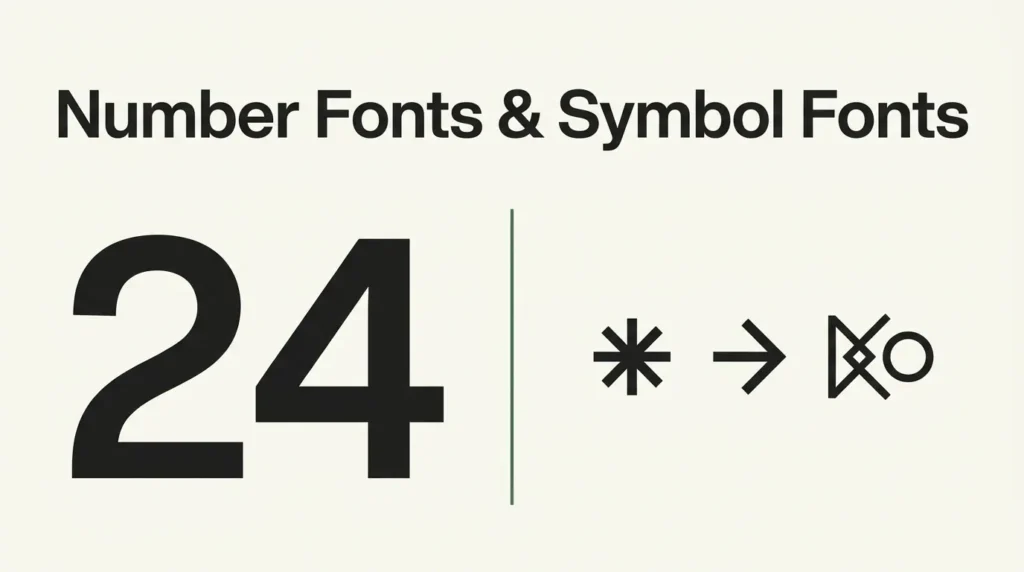
Letter fonts get all the attention in a font pairing, and font numbers get whatever the typeface happened to include. That’s backwards for a lot of projects, and it’s the kind of thing I only notice once a design is already printed. A birthday banner, a price tag, a bio full of little star and heart glyphs, those live or die on the numeral and symbol choice as much as the letters. Search around for font symbols or font numbers and most results are lists of pretty options with no guidance on when to reach for one over another, or how to tell a genuine symbol font from a regular typeface with a couple of extra dingbats tacked on.
Affiliate Disclosure: If you buy through links on our site, we may earn a small affiliate commission to help support the blog – at no extra cost to you. It never influences our product selection process. Thank you!
- Number Fonts and Symbol Fonts: A Design Reference
- Why numbers need their own design decision
- Matching number style to letter style
- Bubble and block numbers for crafts and kids’ projects
- Symbol and dingbat fonts: what they’re actually for
- Aesthetic symbols for captions and bios
- Where to find and how to type symbol font characters
- Internal links
This guide fills that gap. It covers why numbers deserve their own design decision instead of riding along with whatever letter font you already picked, how to match a number style to a letter style so a stray digit doesn’t fight your headline, where bubble and block numbers earn their place in craft and kids’ projects, what a symbol or dingbat font is actually built to do, how to use aesthetic symbols in captions and bios without relying on inconsistent copy-paste characters, and how to actually find and type a symbol once you’ve installed the font it lives in.
Get the Number & Symbol Font Pack — free download.
Download FontsWhy numbers need their own design decision
A typeface is designed around its letters first. Numerals usually get drawn to match that letter style, but the fit isn’t automatic, and some fonts treat numerals almost as an afterthought: flat, generic, or noticeably plainer than the surrounding letters.
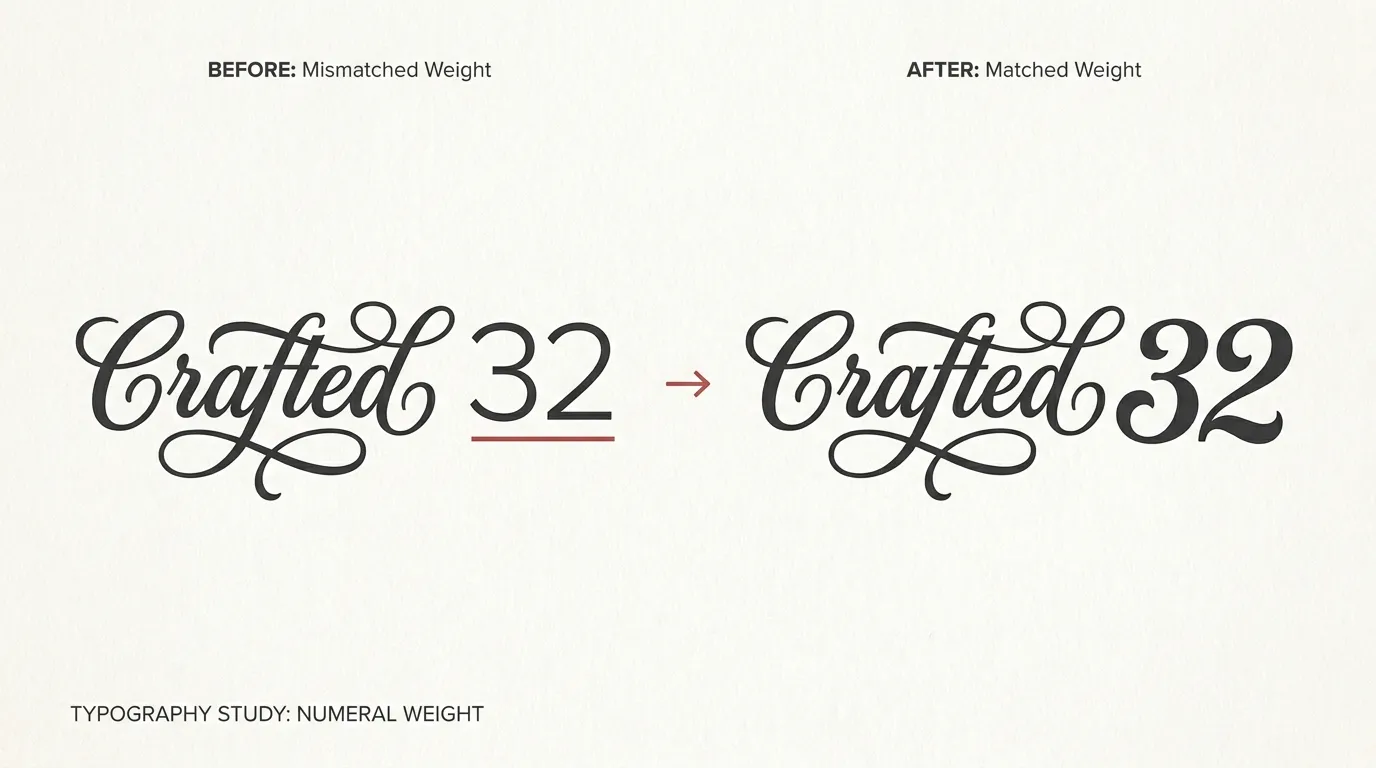
That gap shows up the moment a design leans on numbers. A wedding invitation with a beautifully lettered “Saturday” next to a flat, mismatched “24” looks unfinished. A price tag where the dollar amount is the actual point of the design deserves more thought than “whatever the body font came with.”
Numerals also carry more risk than letters. A misread word usually still makes sense in context. A misread digit changes a price, a date, or a phone number outright, and I’d rather catch that on screen than after a print run comes back. That’s the real argument for treating number choice as its own step, not a byproduct of picking a letter font.
Matching number style to letter style
The safest approach is to check the numerals inside the letter font before reaching for a separate one. Most well-built fonts include a matching numeral set, and testing the actual digits you’ll use, not just the alphabet, at your real design size catches a mismatch before it becomes a printed problem.
When a font’s built-in numerals feel flat next to strong lettering, look for a second font that shares the same broad category: a geometric sans font pairs cleanly with geometric numerals from another sans, and a hand-lettered script pairs better with a simple, quiet number style than with something equally ornate. Two decorative elements fighting for attention rarely reads as intentional.
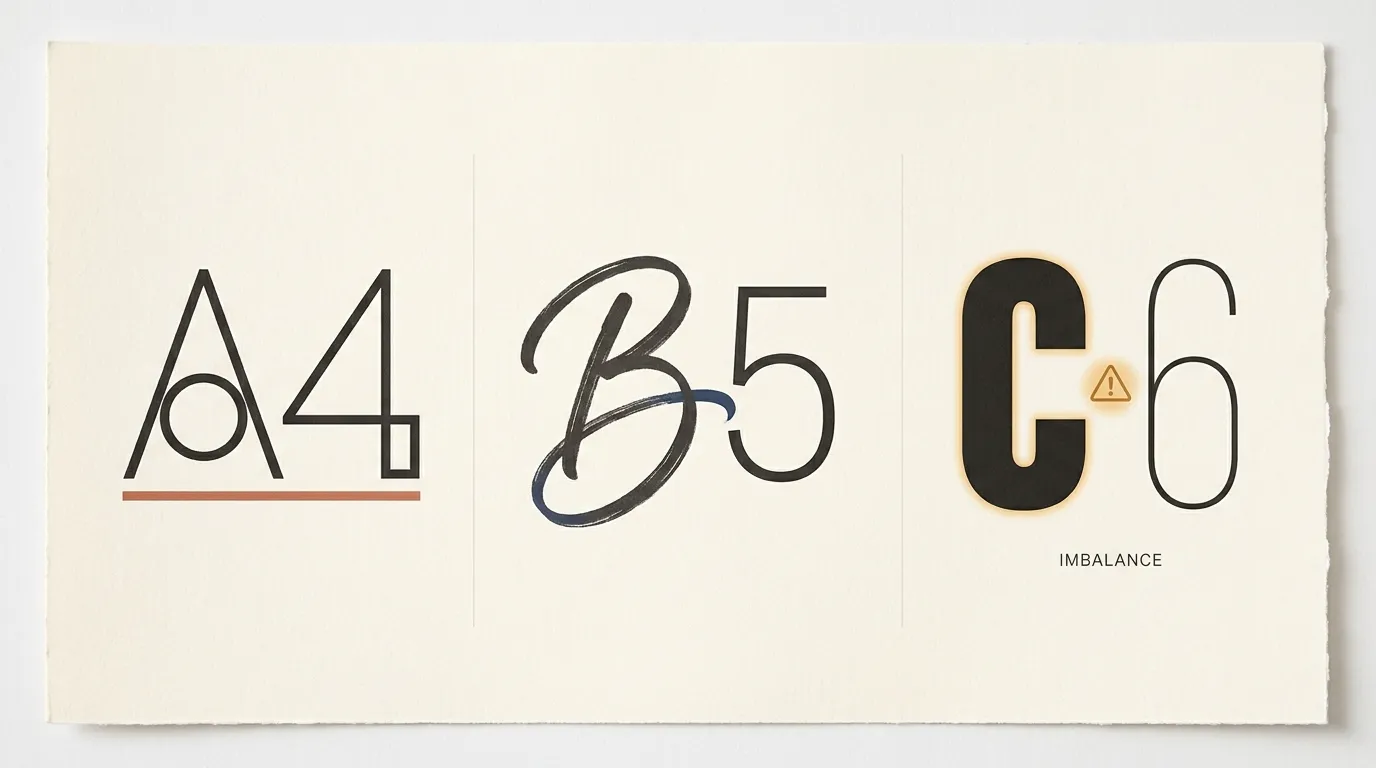
Weight is the detail people skip. A bold, heavy headline word next to a thin, light “4” looks unbalanced even if the letterforms are compatible in every other way. Match weight first, then style; a number that’s structurally different but the same visual weight usually reads better than one that’s stylistically close but noticeably lighter or heavier.
Bubble and block numbers for crafts and kids’ projects
Bubble and block numbers show up constantly in birthday signage, classroom displays, and craft-cutter projects, because they’re built for exactly what those projects need: big, rounded or blocky shapes that read clearly from across a room and cut cleanly on a machine.
Bubble numerals, thick, rounded, high-contrast shapes, work well for milestone birthday numbers, balloon garland numbers, and anything aimed at kids, where the playful roundness matches the mood of the piece. A rounded display face like Baloo 2 carries that bubble feel into its numerals, not just its letters, which keeps a “3” or an “8” consistent with the rest of the wordmark.
Block numerals, uniform stroke width with no contrast between thick and thin parts, work better for a cleaner, more graphic look: sports jerseys, house numbers, minimal party signage. A face like Rubik Mono One gives you that flat, even block shape without the extra personality a bubble font adds.
Both styles cut well on a Cricut or Silhouette because their shapes are simple and closed, with none of the thin hairline strokes that tend to tear during weeding. Check the specific numerals you need at your actual cut size before committing, since even a simple shape can lose its counters (the enclosed space inside a “6” or “8” or “9”) if it’s scaled down too far.

Symbol and dingbat fonts: what they’re actually for
A symbol or dingbat font replaces the usual letters with icons, stars, arrows, shapes, and small illustrations, mapped to the same keys a regular font uses. Type the letter “a” in a dingbat font and you get a star instead of a letter.
They exist for a specific job: dropping a consistent, on-brand icon or ornament into a layout without switching to a separate illustration tool. A designer building a menu, an invitation, or a social template can pull a small arrow, divider, or shape straight from the font file, at any size, in any color, the same way they’d style text.
The confusion is treating a symbol font like a regular font with “a few extra characters.” It isn’t. Most of the alphabet keys are mapped to icons, not letters, so typing an actual word in one produces nonsense. A font like Noto Sans Symbols 2 is a genuine example: a large, genuinely symbol-only character set (arrows, geometric shapes, stars, and more) rather than a text font that happens to include a handful of dingbats at the end.

Aesthetic symbols for captions and bios
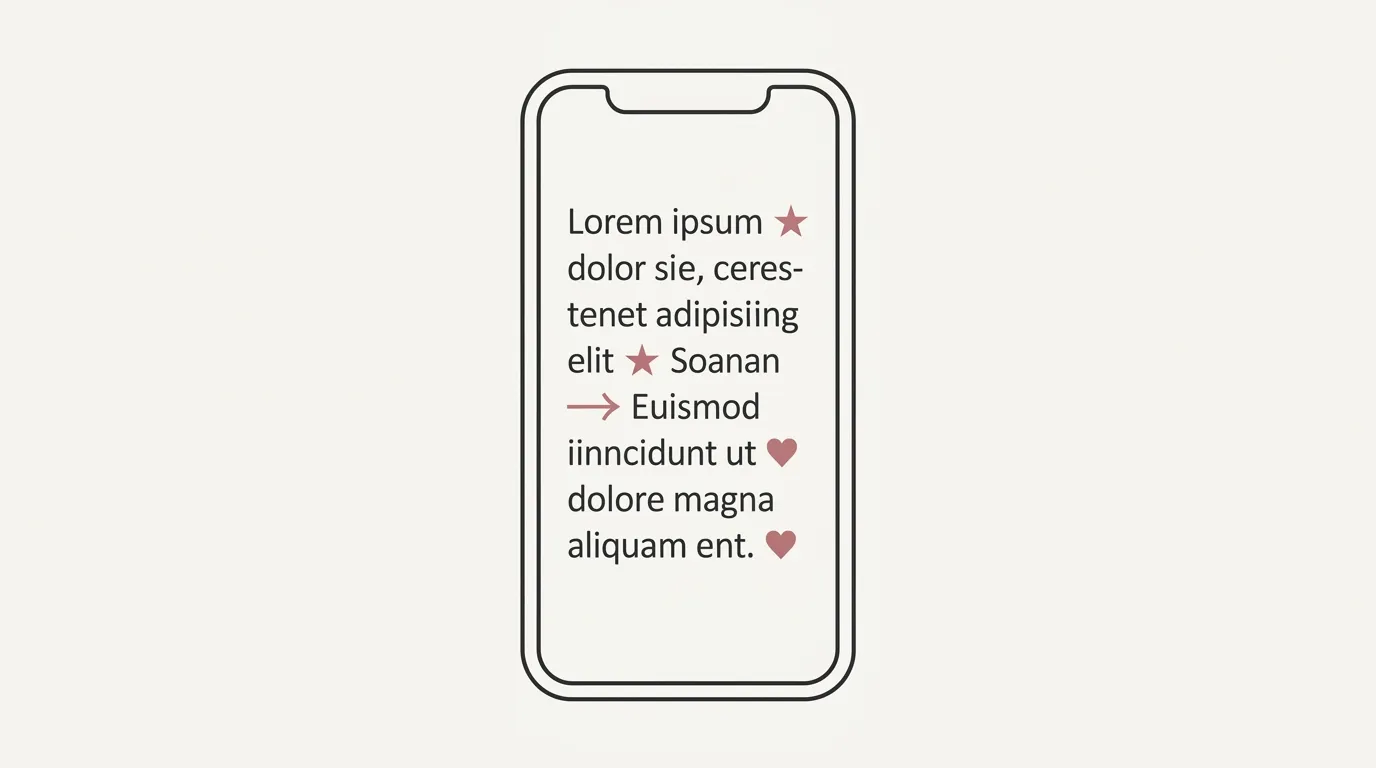
Stars, arrows, hearts, and sparkle marks show up constantly in Instagram bios and captions, usually pulled from a copy-paste symbol generator rather than typed directly. Those characters are real Unicode symbols, not images, which is why they display consistently across apps without needing a font installed.
The advantage of pulling these from an actual symbol or dingbat font instead, when the platform allows custom fonts (a Canva caption graphic, a printed zine, a static Story template), is control. A copy-pasted Unicode star renders in whatever font the app defaults to, and it looks slightly different on every device. A star pulled from a font file as an actual glyph matches your design’s weight, color, and style exactly, the same way any other font character would.
For a bio or caption where the platform doesn’t support custom fonts at all, the Unicode approach is the only option, and it works fine for that limited use. For anything you’re designing and exporting yourself, a proper symbol font gives you more consistent, better-looking results.
Where to find and how to type symbol font characters
Once a symbol font is installed, the glyphs aren’t typically mapped to keys you’d guess. Every major design tool has a way to browse the full character set instead of typing blind: Illustrator and Photoshop have a Glyphs panel, Word and Google Docs have Insert > Special Character, and Canva’s text tool includes its own emoji/symbol picker that works separately from any installed font.
Open that panel, select the symbol font from the font dropdown inside it, and every character the font contains shows up as a clickable grid. Click the one you want and it drops into your text at the cursor, styled exactly like the rest of that font: same weight, same proportions, same color if you’ve set one.
For a one-off use, this is faster than hunting for a matching image online, and it stays fully editable: resize it, recolor it, or swap it for a different glyph in the same font without starting over. For repeated use across a template, note down which key or glyph position produces which symbol so you’re not re-searching the character map every time. Once you’ve got a working set of font symbols and font numbers mapped out, reusing them across a project takes a few seconds instead of a new search every time.

Almost every standard font ships with a full 0-9 numeral set, so you don’t need a separate font just to type a number. A dedicated number font only matters when you want numerals with a specific look, like bubble, block, or hand-lettered, that the rest of the font family doesn’t offer.
Install the symbol font like any other font, then open your design tool’s glyph panel (Insert > Special Character in most apps, or the Glyphs panel in Illustrator/Photoshop) to find and insert the specific character, since most symbol glyphs aren’t mapped to a key you can just type.
Copy-paste number generators use Unicode lookalike characters, not the actual installed font, so they’ll display almost anywhere but won’t match your brand font’s stroke width or style. They’re fine for a quick caption; for print or branded design, use the real font file instead.
Only if every digit stays unmistakable at the size it will be read. Bubble, script, or heavily rounded numerals can blur 6/8, 3/8, or 0/O together, so test any number-heavy design, phone numbers, addresses, prices, at actual size before it goes to print.
Internal links
- Bubble Letters for Crafts, Posters and Journals (bubble letterforms and craft-cutting context for the bubble number section)
- Alphabet Fonts A to Z: A Style Reference for Every Project (matching number style to a full alphabet style)


